Once participants have been added to your project, they can complete surveys a variety of ways:
- Logging into the app and completing any incomplete survey tasks.
- Clicking a link from a notification that either:
- Directs the participant to complete a survey via web (no login required).
- Directs the participant to complete a survey via the app.
You can also allow potential participants that have not yet been added to your project to complete surveys via web without ever creating an account or installing the app by utilizing recruitment survey links.
The following article will discuss how to implement survey links in notifications for participants who have already been added to your project.
Web Survey Links vs Deep Survey Links
A web survey link, when clicked, opens the participant’s survey in a web browser without requiring the participant to login to MyDataHelps. These can be beneficial for projects that don’t require the participant to login to the app frequently or at all, and can be used in both email and SMS notifications.
A deep survey link, when clicked, opens the participant’s survey within the app. These can be beneficial if participants are expected to have the app downloaded on their mobile device, especially if they are encouraged to interact with the app frequently, and can be used in email, push, or SMS notifications.
Both options allow for a better participant experience if using notifications to inform and remind participants of survey tasks that are due, since these reduce friction to getting to the survey itself.
Creating Web Survey Links
Web survey links can be created while configuring SMS and email notifications.
Links in SMS Notifications
Web survey links can be generated while creating SMS notifications, and allow you to define the following properties:
- Survey: The survey that will be launched when the link is clicked.
- Require Incomplete Task: Only allow participants to launch the survey if they have an incomplete survey task (i.e., if they don’t have a survey task for the survey associated with the link, or they have already completed the survey, the survey won’t launch).
- Single Use: Allows the linked survey to be completed only once through this link.
- Expiration Hours: Hours before the link will expire. If left blank, the link will never expire.
- Follow Up Action: Direct participants to complete another survey or to open MyDataHelps account registration.
Use the “open MyDataHelps account registration” follow up action if directing participants to complete the consent survey via web before creating a MyDataHelps account.
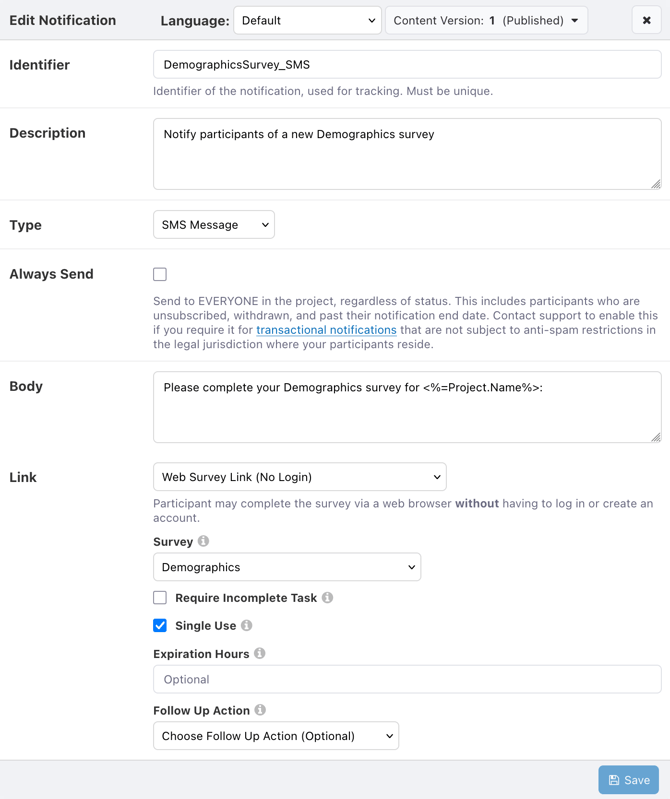
For example, to create an SMS notification that directs participants to complete a demographic survey via web:
- Under Link, select “Web Survey Link (No Login).”
- Select the Demographics survey.
- Check Single Use.
- Leave Expiration Hours blank.
- Leave Follow Up Action blank.
Links in Email Notifications
Email templates and expressions are two ways to add Web Survey Links to an email notification in MyDataHelps Designer.
Email Templates
Using email templates is the quickest and easiest way to add web survey links to an email notification. Similar to using web survey links with SMS, Web survey links can be generated while creating email notifications, and allow you to define the same properties as when using an SMS notification.
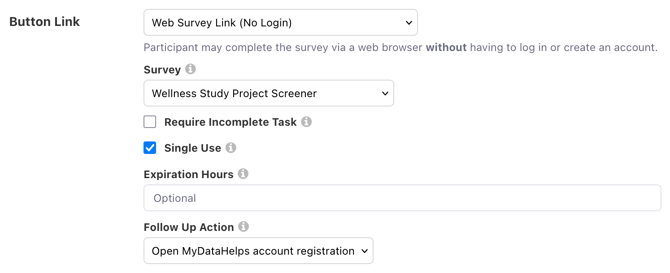
For example, to create an email notification using the Project Invitation email template that directs new participants to complete the Wellness Study screener survey via web and to then register an account with the MyDataHelps app:
- Under Link, select “Web Survey Link (No Login).”
- Select the survey, in this case "Wellness Study Project Screener".
- Keep "Single Use" checked, so they cannot re-attempt the screener and change answers.
- Leave Expiration Hours blank.
- For Follow Up Action, select "Open MyDataHelps account registration".
Expressions
Use expressions to add a web survey link to an email notification. These should take the following form:
<%= WebSurveyLink("SurveyName") %>
where SurveyName is the name of the survey that should be launched.
These expressions must be inserted into the email notification using html: <a href='<%= WebSurveyLink("SurveyName") %>'>Click here</a>.
For example, to insert a web survey link to the Demographics survey in an email, see below.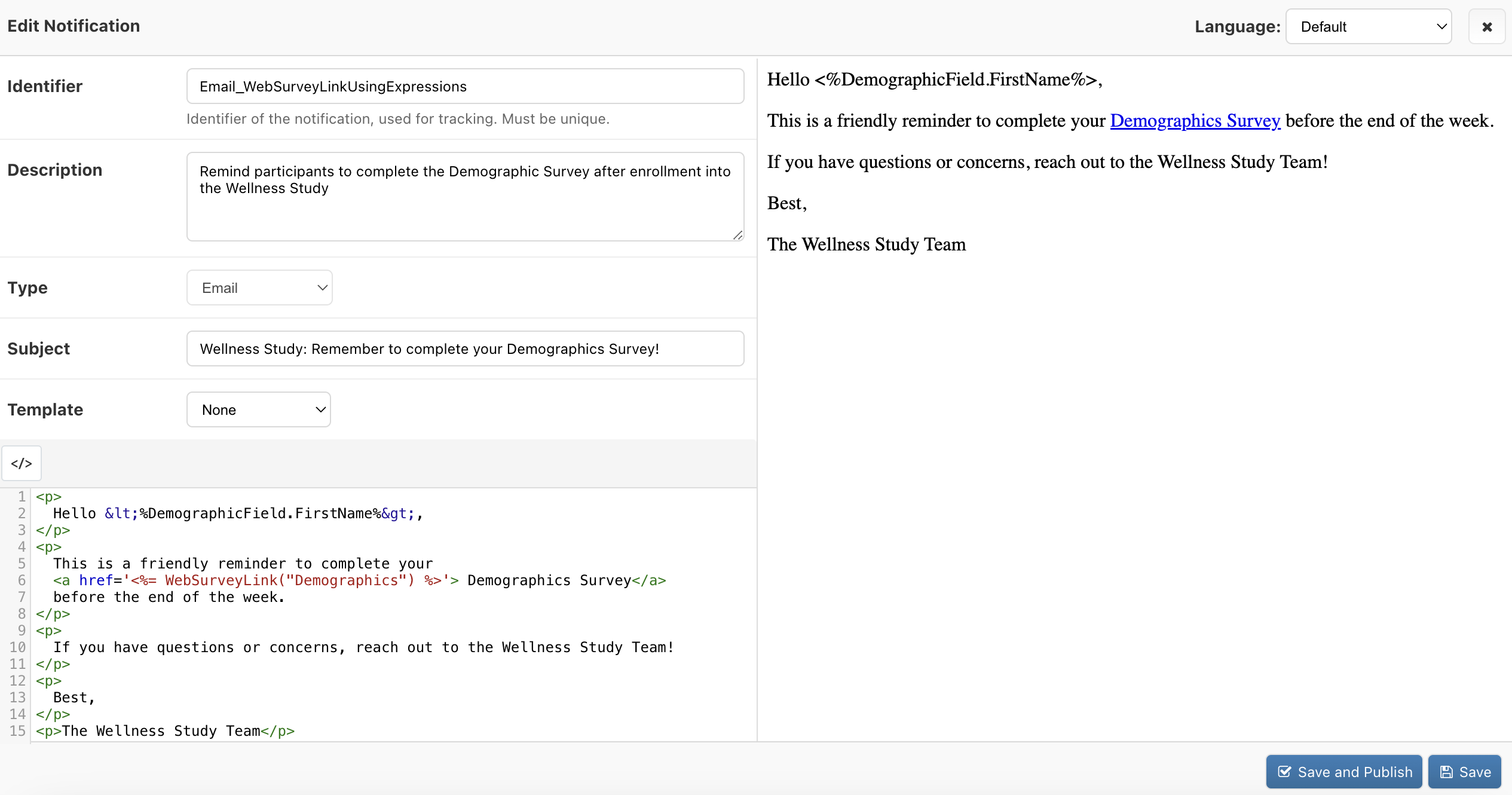
Creating Deep Links
Deep links can be configured within notifications and allow you to direct the participant to specific areas within the platform such as:
- Surveys: direct participants to complete a specific survey
- Tabs: direct participants to a specific tab
- External Account Connection: direct participants to connect an external account (e.g., electronic health records)
If the participant has the iOS or Android app installed, clicking the deep link will open the app on their mobile device. Otherwise, clicking the deep link will direct them to login on web before presenting the survey, tab, or external account connection.
Links in Push & SMS Notifications
Deep links can be generated and defined while creating SMS or push notifications.
Deep Survey Links
Deep survey links allow you to define the following:
- Survey: The survey that will be launched when the link is clicked.
- Require Incomplete Task: Only allow participants to launch the survey if they have an incomplete survey task (i.e., if they don’t have a survey task for the survey associated with the link, or they have already completed the survey, the survey won’t launch).
- Single Use: Only allows the survey to be completed once from this link.
- Tab Key: The tab that the participant will be directed to within the app. Home and Tasks are commonly used Tab Key options.
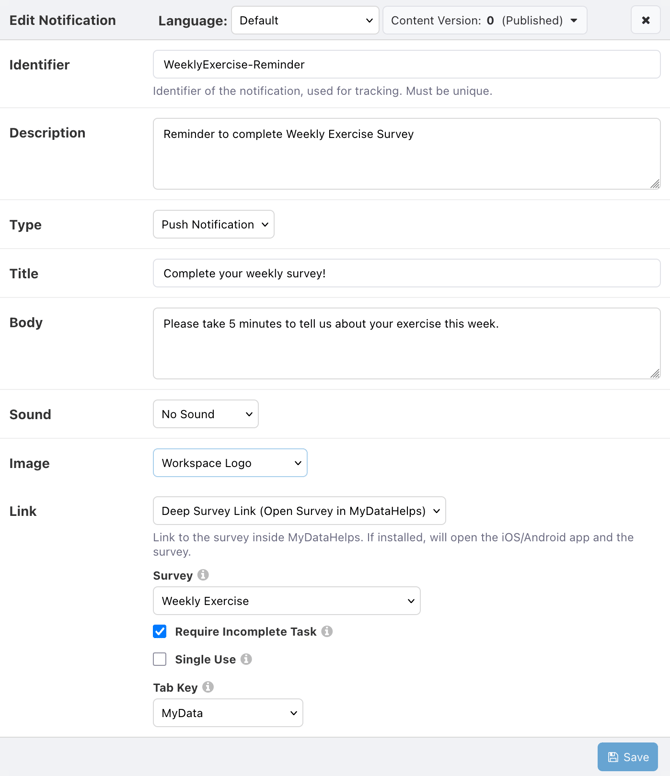
For example, if your project sends out a weekly exercise survey every Sunday morning, you could create a push notification that directs participants to complete the Exercise survey via the app. Further, you could have the app open to the My Data tab in the background so that the participant sees their device data once they submit the survey. To implement this:
- Under Link, select “Deep Survey Link (Open Survey in MyDataHelps).”
- Select the Weekly Exercise survey.
- Check Require Incomplete Task.
- Select MyData as the Tab Key.
Deep Tab Links
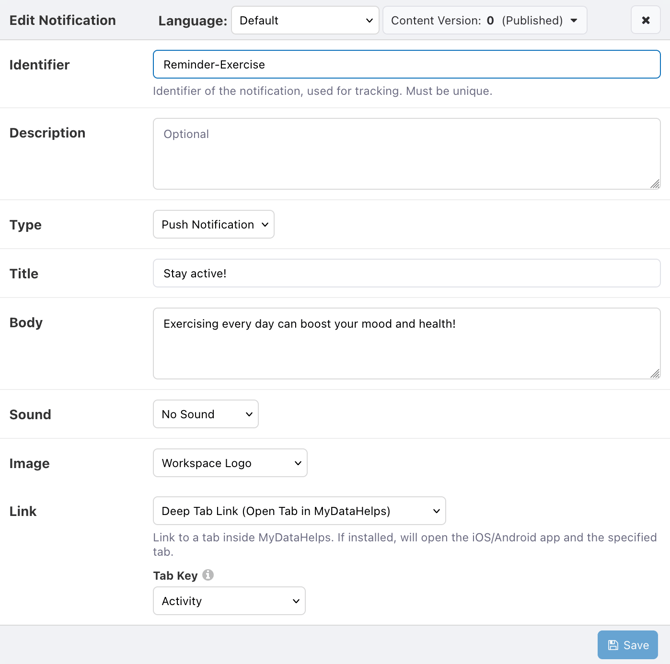
Deep tab links can be created by selecting a link type of “Deep Tab Link (Open Tab in MyDataHelps),” and the only field required is the Tab Key. For example, if you didn't have a weekly survey, but wanted to send a push notification encouraging participants to exercise, you could direct participants to the My Data tab upon clicking the notification to show them their device data.
If you ask participants to complete multiple surveys at once, use a Deep Tab Link to send them to the tab with their task list to complete them all at once.
Deep Connect External Account Links
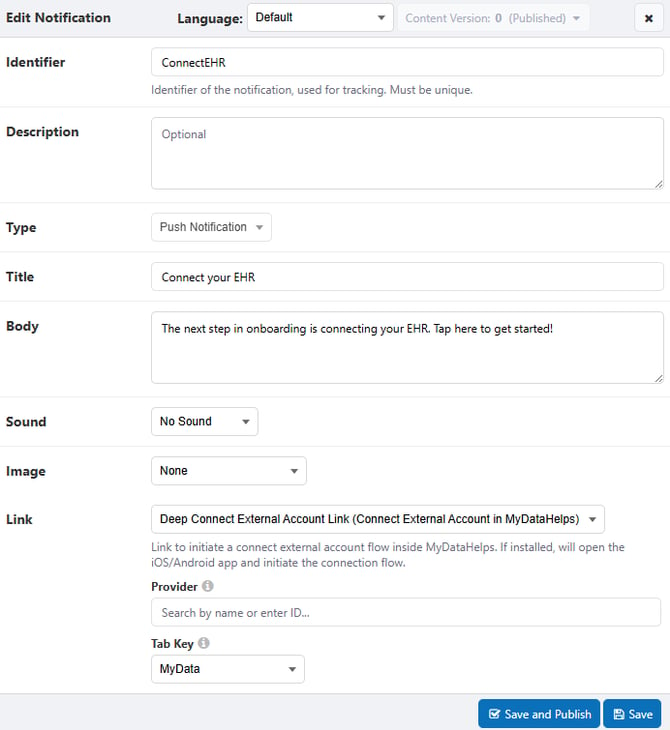
You can also direct participants to external account connection. For example, if your study collects EHR data, you may wish to nudge participants to connect. You can also specify a provider.
Links in Email Notifications
Email templates and expressions are two ways to add Deep Survey Links to an email notification in MyDataHelps Designer.
Email Templates
Using email templates is the quickest and easiest way to add deep survey links to an email notification. Similar to using deep survey links with Push & SMS, deep survey links can be generated while creating email notifications, and allow you to define the same properties as when using Push and SMS notifications.
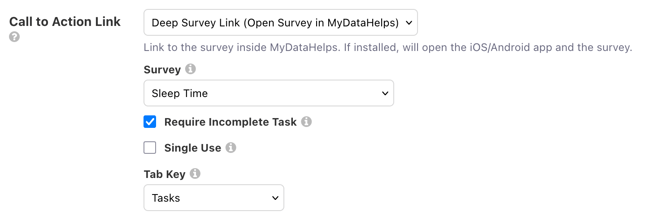
For example, if your project sends out a daily Sleep Time survey every morning, you could create an email notification using the Call to Action V2 template that directs participants to complete the Sleep Time survey via the app. To implement this:
- Under Link, select “Deep Survey Link (Open Survey in MyDataHelps).”
- Select the Sleep Time survey.
- Check Require Incomplete Task.
- Select Tasks as the Tab Key. This allows participants to see if they have additional tasks to complete.
Expressions
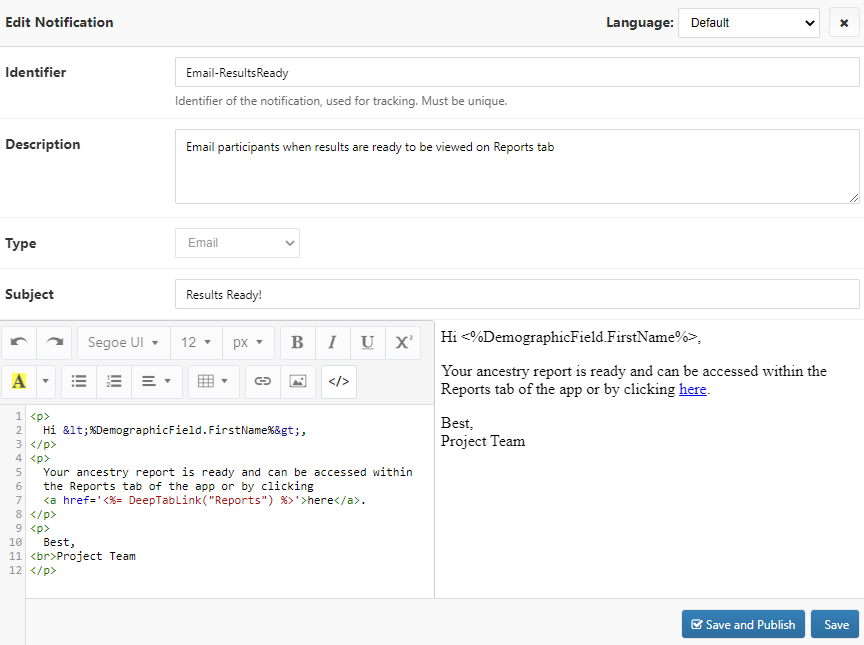
Use expressions to add a deep survey link or deep tab link to an email notification. These should take the following form:
<%= DeepSurveyLink("SurveyName") %><%= DeepTabLink("TabName") %>
Where "SurveyName" is the name of the survey that should be launched and "TabName" is the name of the app tab that should be launched.
These expressions must be inserted into the email notification using html:<a href='<%= DeepSurveyLink("SurveyName") %>'>Click here</a>.
For example, to insert a deep tab link to the participant's Reports tab into an email notification, see below.
[Legacy] Using Survey Links Prior to 2023
For projects initiated before 2023, survey links may take on the form below. These links act similar to web survey links, opening a web browser to complete the survey.
https://mydatahelps.org/mydatahelps/<%LinkIdentifier%>/surveylink/?surveyName=Welcome%20Survey
In this link format, the <%LinkIdentifier%> is used to create a link that is customized for each participant it's delivered to.
This type of link requires URL encoding on any special characters in your survey name, including spaces. For example, a space is "%20"; "Welcome Survey" would become "Welcome%20Survey".
Survey Link URLs do not work for Push notifications.
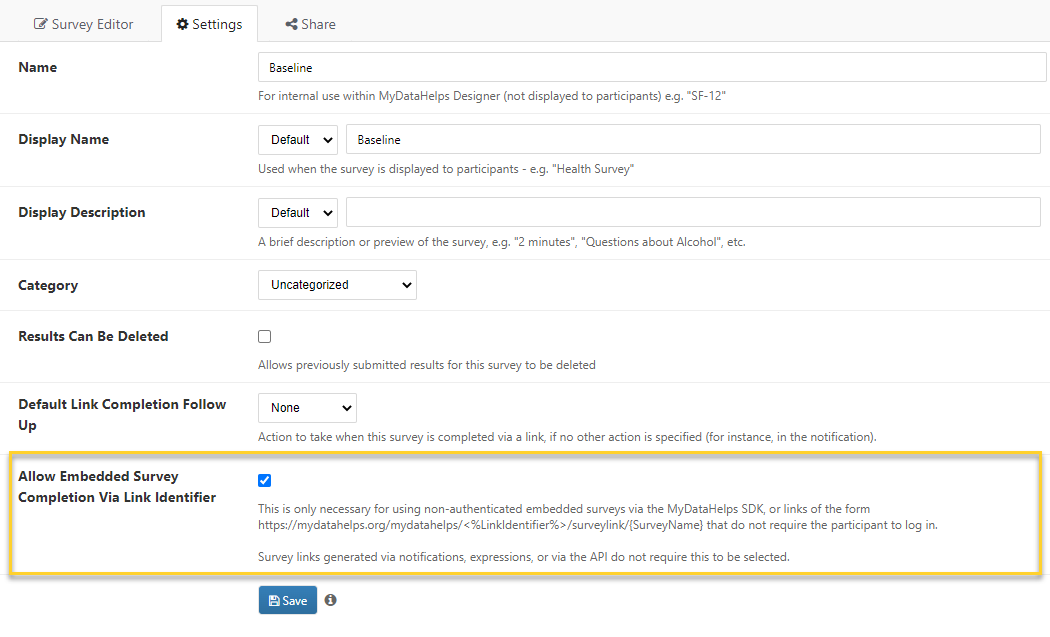
To enable survey completion via link for projects using this legacy link type, “Allow Embedded Survey Completion Via Link Identifier” must be selected within the survey settings.