
If your project plans to enroll participants whose primary language is not English, you can configure your project’s content (including names & descriptions, surveys, notifications, and app tabs & views) to display in additional languages.
The MyDataHelps app (names, descriptions, and surveys) will utilize the primary language setting of the device. The Preferred Language demographic field determines which language is used when sending notifications.
Supported Languages
MyDataHelps uses locales to determine which language to display to participants. A locale is the combination of a language code and an optional country code (similar to a dialect). For the purpose of this article, we'll use locale and language interchangeably. MyDataHelps supports the following languages:
| Locale | Locale Code |
|---|---|
| Dutch | nl |
| English | en |
| Filipino | fil |
| French | fr |
| French— Canadian | fr-CA |
| German | de |
| Italian | it |
| Polish | pl |
| Portuguese — Brazil | pt |
| Portuguese — Portugal | pt-pt |
| Romanian | ro |
| Somali | so |
| Spanish | es |
| Swahili | sw |
| Tagalog | tl |
| Vietnamese | vi |
If you need to configure your project for a different language, please contact us.
Language Priorities
When you first create a localizable component (survey, notification, etc.), you enter the default text. For most projects, this will be English. You can then add localizations in each language you want your project to support. In addition to the basic text, you may also need to localize error messages, URLs, custom views, icons, and graphics.
When displaying text, the system will use the best available text, in the following order of preference:
- The exact language matching their participant’s browser/device settings. (e.g., French Canadian
fr-CA) - The system-defined fallback language. (e.g., French
fr) - The component’s default text (typically English)
Notifications use the participant’s “Preferred Language” setting rather than their browser/device language. See Updating the Participant's Preferred Language.
Adding Additional Languages
To configure your project for additional languages, you will need to update the following:
- Project Settings (Supported Languages, Display Name, Display Description, & Learn More Title)
- App Designer
- Survey Content
- Notification Content
- Workspace Settings (Display Name & Display Description)
Project Settings
The project settings determine which language your project supports, as well as the default language.

Supported Languages
This is the list of languages your project supports. You will only be able to localize your project into these languages, so update this first before localizing other components.
Some devices do not send a country code. If your project supports a locale with a country code (e.g., pt-pt or fr-CA), be sure to also support the base language with no country as a fallback (e.g., pt or fr).
Default Language
When a participant first joins a project, the system will attempt to set their preferred language based on their browser/device settings. The “Default Language” project setting will be used as the default preferred language when their browser/device language cannot be determined, or is not supported by the project. If you anticipate most of your participants to be English speakers, you do not need to change this setting.
Additional Project Settings
Additionally, within the project's About Settings, you can use the "Default" dropdown to add translations for Display Name, Display Description, and Learn More Title.

App Designer
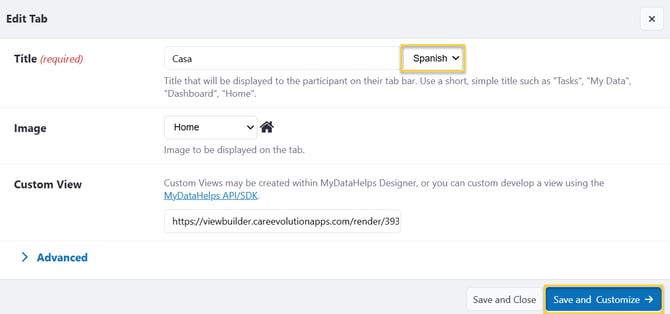
If your project utilizes the participant-facing MyDataHelps app, start by adding the translated Title of each tab within the app by going to App Designer, clicking on the tab to edit, then updating the Title field. From there, click Save and Customize to add translations to the view.
Within the view, update the language of the view in the upper right corner, and then add translations for any of the participant-facing text in that view. Once done, click Save & Exit in the bottom right corner.
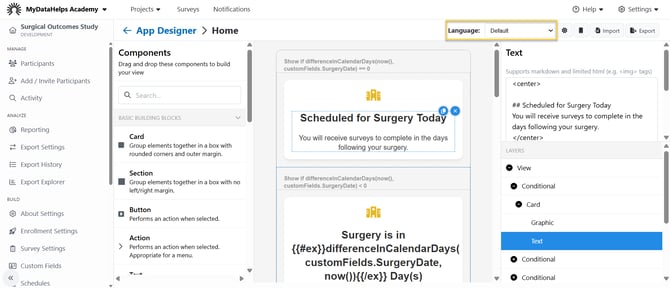
The names of custom fields and logic used for piping should not be translated within the view editor.
If you’ve created an external Custom View URL outside of view builder/MDHD to be displayed as one of the tabs in your app, you will need to translate that as well. That should be configured within your external app and should respect the device’s language settings and participant's preferred language (demographic field).
Survey Content
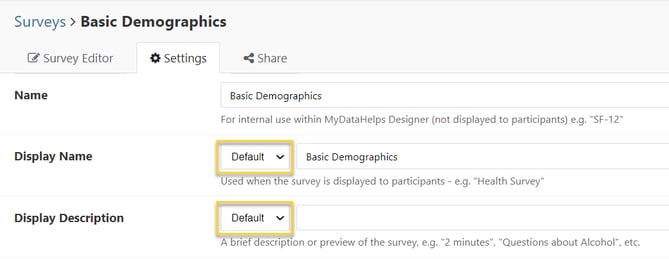
The translated Survey Name and Survey Description can be updated within the survey’s Settings tab.
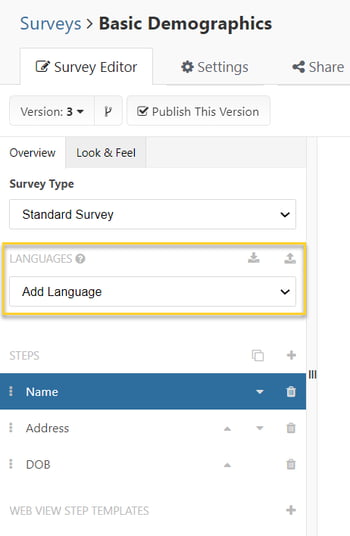
The contents of the survey can be updated by switching Languages on the left hand side of the Survey Editor, then editing the content.
For more information, see Creating Multilingual Surveys.
Notification Content
To update notification content, open an existing notification, switch the Language at the top of the Edit Notification window, update the text fields, then click Save in the bottom right corner.
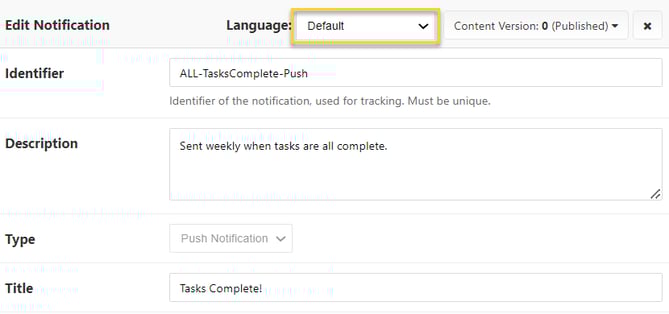
For more information, see Creating Multilingual Notifications.
Workspace Settings
The Organization Display Name and Description can be updated by clicking the “Default” dropdown to the right of the text field within the Workspace Settings. Once you’ve added the translated display name, click “Save Settings” at the bottom of the page.
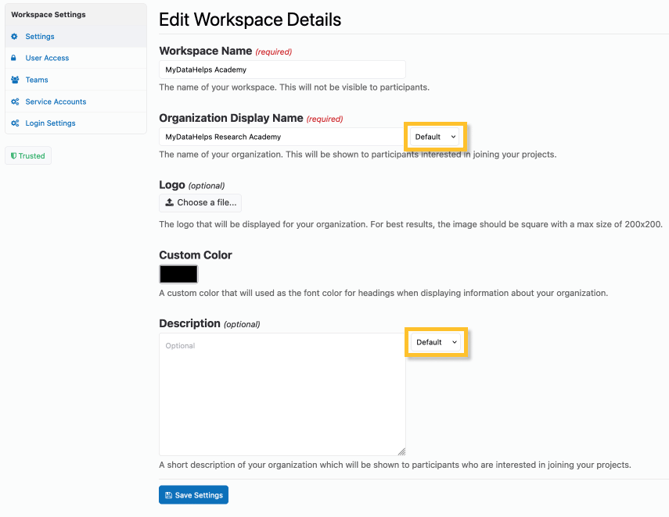
Updating the Participant's Preferred Language
The Preferred Language demographic field determines what language is used when sending notifications. If the Preferred Language field is left blank, notifications will be sent in the default language, English. If this field is not left blank, it must be one your project's supported languages.
This field is automatically saved upon MyDataHelps account creation and respects the participant's browser or device settings at that time. If the default language is English, and the participant's device or browser settings are set to English during account creation, the Preferred Language field will appear blank, indicating the default language of English.
Alternatively, you can use a survey question to collect or update the Preferred Language. For example, if your study supports English and Spanish, you would create a survey step with the following settings.
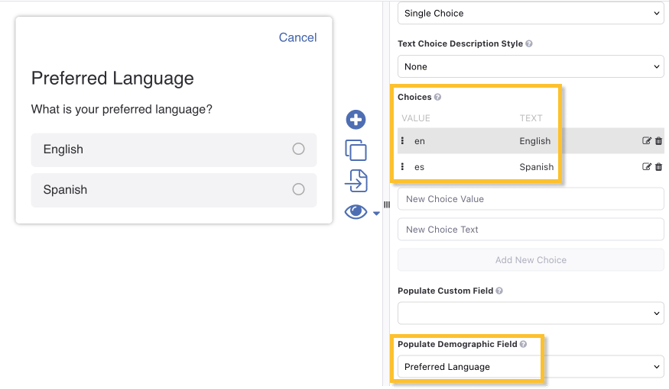
When populating the Preferred Language, the answer choice values must correspond to the locale code values listed in the Supported Languages section.
See Populating Participant Fields for more information on how to populate this demographic field.
Testing Additional Languages
Once you’ve updated and saved all of the configurable settings mentioned above, you should enroll a test participant in your project and verify that all of the translations appear as expected.
The MyDataHelps app will utilize the primary language setting of the device, while the notifications (email, push, SMS) will respect the Preferred Language demographic field value for the participant.
To begin testing, update the language used by the app in one of three ways:
- Change the primary language in the device’s settings (all platforms).
- Update the preferred language within the MyDataHelps app’s settings (mobile app only).
- Toggle between English and Spanish in the upper right corner of the screen by clicking the language button (web only).
From there, navigate to the MyDataHelps app on your device and confirm the workspace, project, and tab settings have been translated.
Next, deliver a survey to the test participant and confirm that you see the translated version.
The translated survey version(s) must be published to the Dry Run project before testing as a participant.
If you've added translations for coordinator surveys, those can either be tested by using the "Try It Out" button within the survey editor or you can update the browser language settings to display in the language you wish to test. Once the browser language has been updated, navigate to your test participant in MDHD and launch the coordinator survey to test the translations.
Finally, update the participant’s preferred language:
- Click on the participant from the Participants tab.
- Navigate to the Participant Info tab.
- Update the Preferred Language.
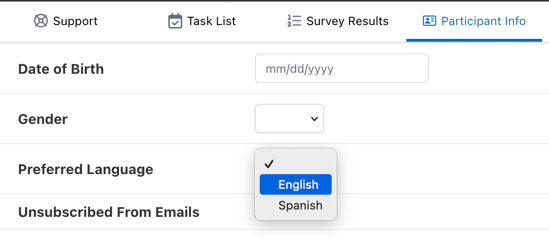
- Click Save in the bottom right corner.
If your project uses a survey to update the participant's preferred language setting, you should test that as well.
Once the preferred language has been updated, send the participant a notification and confirm that they receive the translated version.