Creating a Project
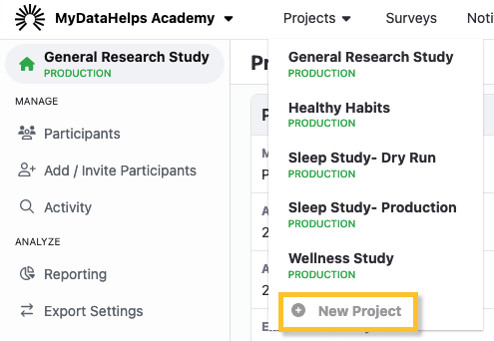
When you create a workspace you will automatically be prompted to create a project. If wish to create another project within your workspace, simply go to the projects menu in the top navigation bar and click New Project.
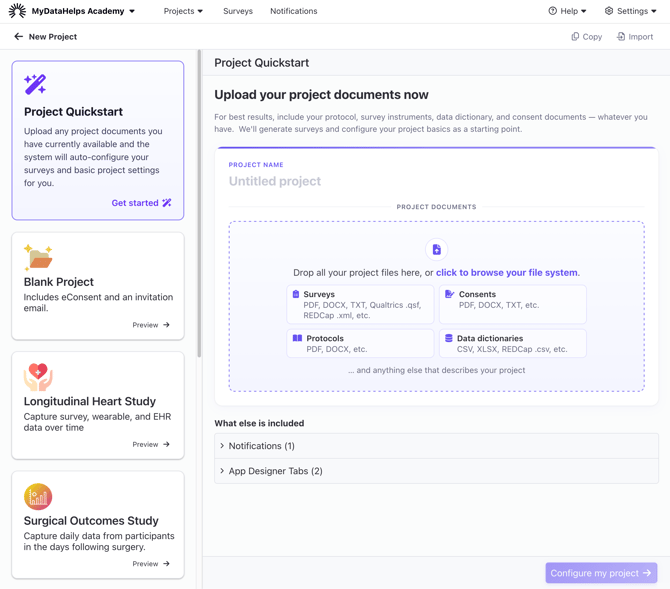
When creating a project, you can either choose a pre-made template or use the Project Quickstart with your own protocol or other documents.
Project Quickstart
The Project Quickstart uses AI to automatically generate surveys and configure project settings based on documents related to your project. You can upload one or more documents such as a protocol, consent form, data dictionary, exports from REDCap or Qualtrics, validated instruments, and more. Depending on the amount and clarity of documentation you upload, Project Quickstart can automatically configure:
Enter a name for your project, and upload as many documents as you have available. Then click "Configure my project."
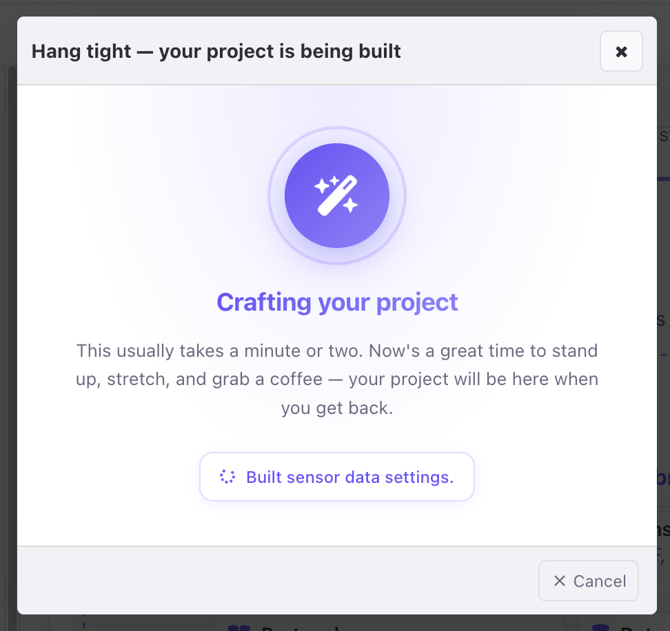
 Project Quickstart will then process your documents, which can take a few minutes depending on the size and quantity of documents.
Once complete, you will see a list of the surveys and settings which were configured. All Quickstart projects will also include a standard project invitation email notification and two standard App Designer tabs.
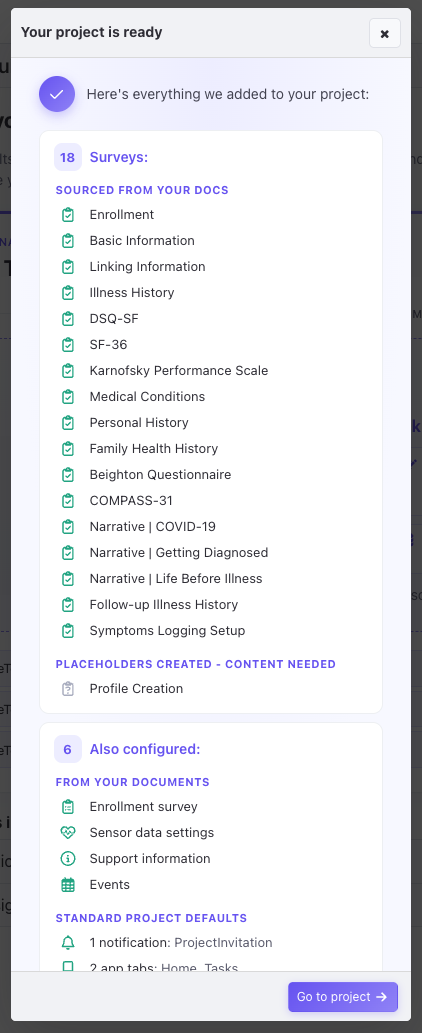
When using Project Quickstart, you should also consider the following important aspects:
-
If you provided a data dictionary or specific documented instruments, Project Quickstart will use the data identifiers you provided where possible. Otherwise they will conform to MyDataHelps survey data best practices.
- Surveys which are mentioned in documents (for example, in a schedule of assessments), but are not otherwise specified and can't be identified as a standard instrument (e.g., "PHQ-9"), will be created in name only as placeholders. No artificial content will be generated for these surveys, and you will need to configure them.
- You should verify all surveys and settings constructed by Project Quickstart before inviting participants to your project, including conducting thorough testing.
- Project Quickstart will not create Segments, Notifications, Schedules, or Custom Fields.
- Documents are processed by a commercial AI model using a "non-retention" policy, so no uploaded documents are retained or stored by MyDataHelps or the AI platform.
Project Templates
Templates quickly allow you to start configuring your project from a complete pre-designed configuration including standard surveys, notifications, schedules, app designer tabs, and custom fields. If you'd like to start from scratch, we recommend using the Project Quickstart. If you don't have any documents such as a protocol to upload, you can choose the "Blank Project" template.
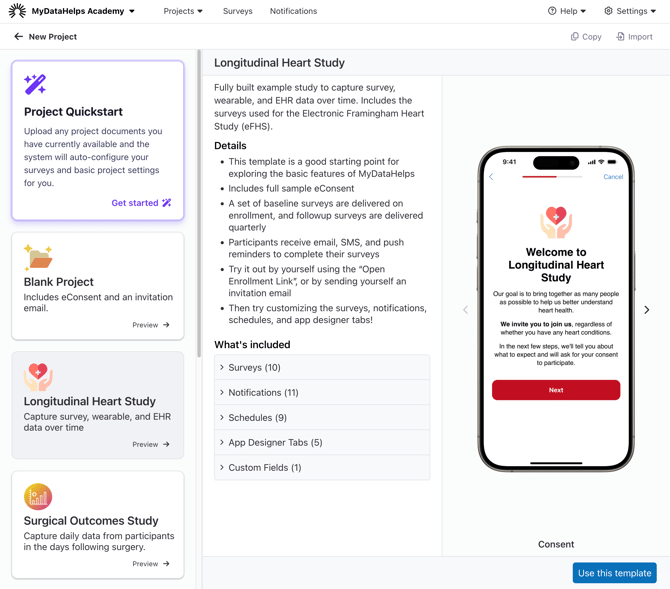
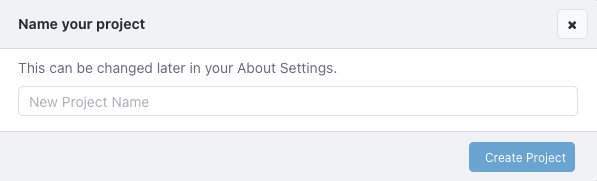
When you've found the template you'd like to use, click "Use this template" and enter a project name.
Upon creation, you will be taken to the project dashboard, where you can navigate to various project settings, try out your project, or add participants and segments. 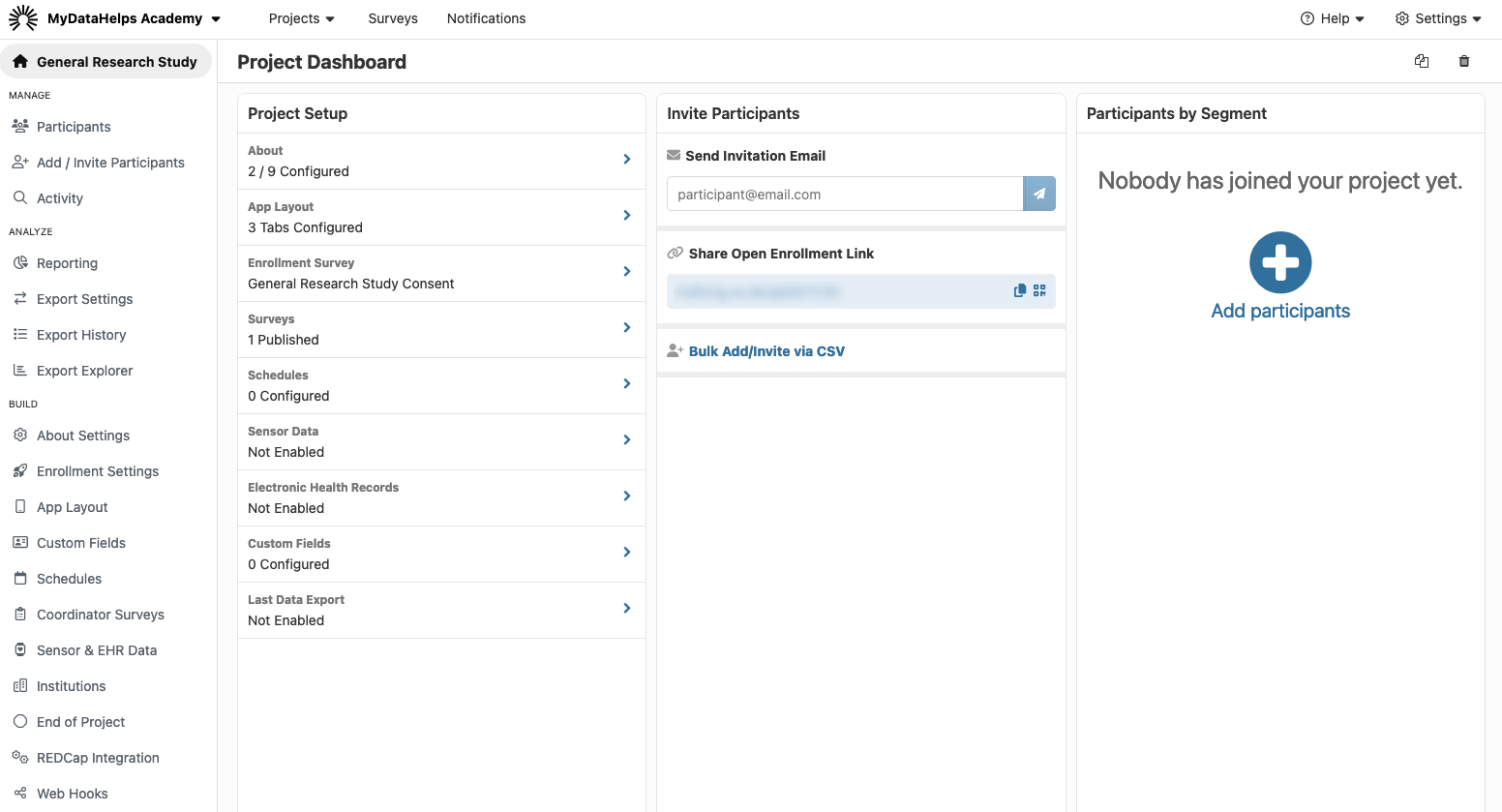
Renaming a Project
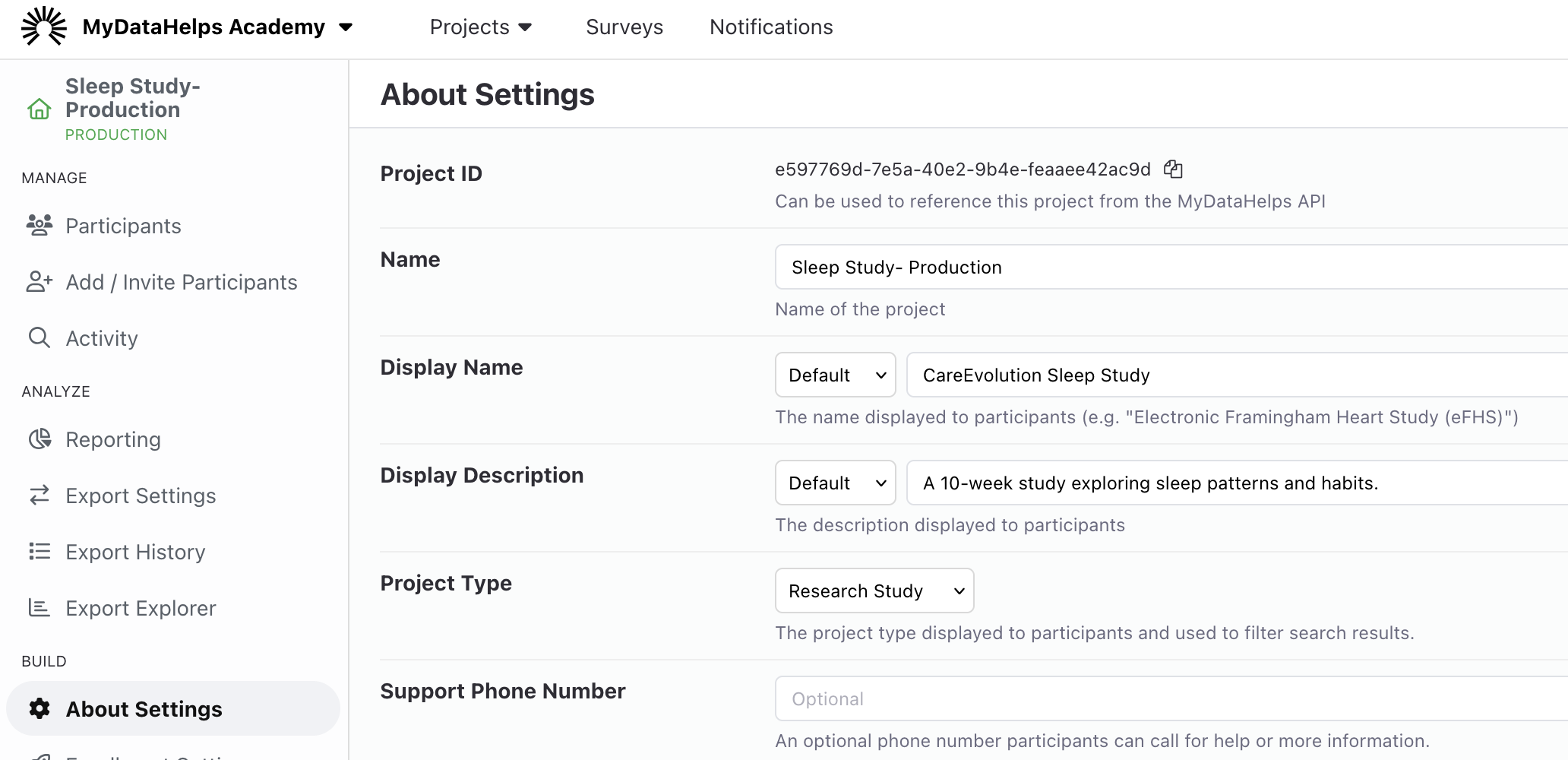
Once you have created a project, you are able to rename the project. To do so, you will need to navigate to the About Settings tab on the sidebar.
On the About Settings tab, the project can be renamed by editing "Name". This is an internal name for your project. If you wish to change the participant-facing project name, edit the "Display Name".