
Recruitment Surveys allow you to collect data from participants via web before directing them to complete additional steps. See Typical Recruitment & Enrollment Workflows for common scenarios using them, such as open recruitment or creating a waitlist of interested participants.
Within Enrollment Settings, you can choose to define specific surveys as Recruitment Surveys. These can be distributed either via QR code or link and do not require the participant to immediately create a MyDataHelps account or download the app, since the surveys are completed via web.
Configuring Recruitment Surveys
Once you have published the survey you wish to use as a recruitment survey, you will need to define it within Enrollment Settings. To configure this:
- Navigate to your project > Enrollment Settings > Recruitment Surveys.
- Select the survey from the drop-down menu.
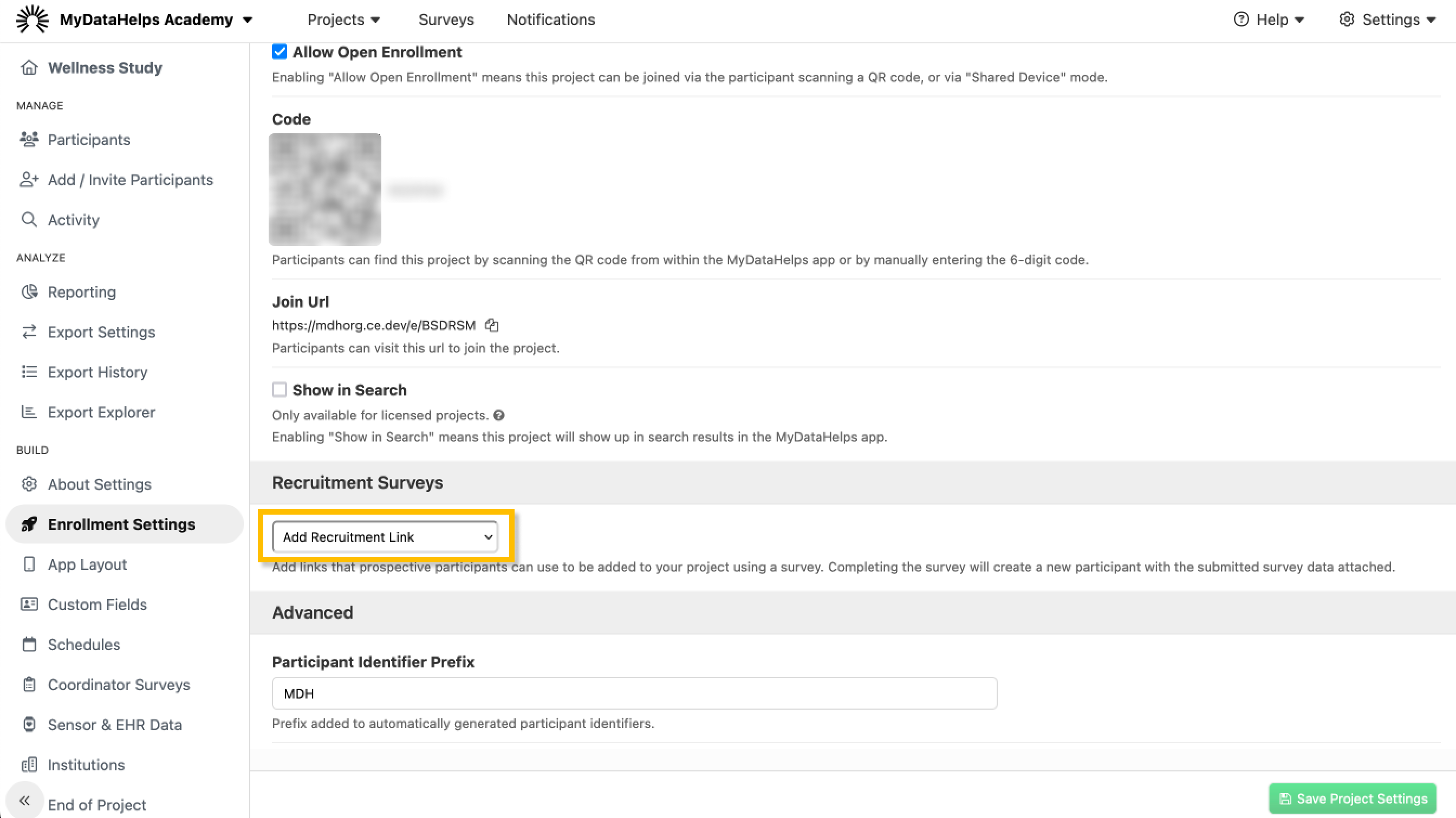
- Click Save Project Settings at the bottom of the page.
Once you've created the Recruitment Survey Link, you can copy the QR Code or URL directly from the Enrollment Settings or the project dashboard.
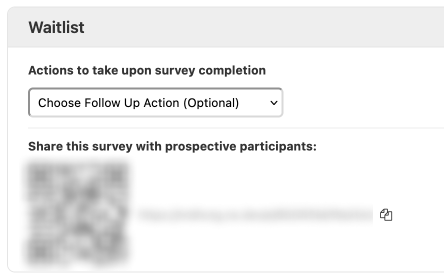
Your can also define actions to take immediately upon recruitment survey completion:
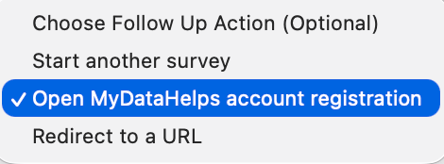
- Start another survey: Use this to launch another survey.
- Open MyDataHelps account registration: Use this if the participant should proceed to create their account and self-enroll.
- Redirect to a URL: Use this to direct the participant to another site, such as your study's home page.
As soon as a participant completes the survey using the QR code or link, a participant record will be added to the project.
Following-Up with Recruited Participants
We recommend capturing contact details such as email and/or phone when using recruitment surveys so that you can contact the participant for any follow-up.
If you want track recruited participants, you can create a segment that evaluates for potential participants who are not enrolled and have a Survey Answer for the recruitment survey. You can create schedules or use segment actions to notify participants, either reminding them to enroll or notifying them when enrollment is available.
Keep in mind that these Recruitment Survey Links are not unique, so each time the survey is completed using the link or QR code, a new participant record will be added to the Participants tab of your project (e.g., if the same participant clicks on it twice and completes the survey, you will have duplicate entries for that participant).