
Once you've enabled data exports for your project and have your first export, you can use Jupyter Notebooks to run queries, receive (visualized) output, and hold formatted text (Markdown). If you have questions about how to use JupyterLab or would like to learn more, please visit JupyterLab Documentation.
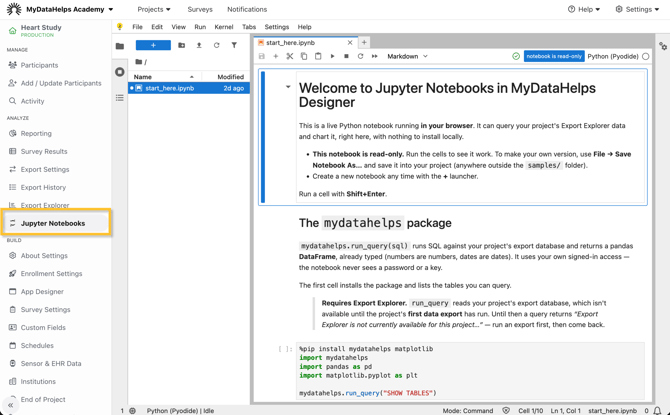
To start using Jupyter Notebooks for your project, click on the "Jupyter Notebooks" tab within the Analyze section to open an in-browser JupyterLab (JupyterLite) environment:
Things to Know
-
You need the "Export Explorer" permission to access the Jupyter Notebooks tab.
-
All project notebooks are shared across the project with other users who have the appropriate permissions.
-
Code runs on your computer, so memory and speed depend on your computer and browser. Very large datasets or ML packages may not be practical.
-
Large results can be truncated, but will be accompanied by a warning. Use `LIMIT` or aggregate in SQL.
-
Long-running cells can be cut off if you're inactive within MyDataHelps Designer and automatically signed out.
-
You can upload files like CSVs. Unlicensed projects are limited to 25MB per file and 25 files total.
-
Downloaded notebooks keep their cell output, which can contain participant data, so handle them as you would any export of participant data.
mydatahelps Package
`mydatahelps` is a built-in Python library that pulls your project's data straight into your Jupyter notebook. `mydatahelps.run_query(sql)` runs SQL against your project's export database and returns the results as a pandas DataFrame. Columns come back with the correct types (numbers as numbers, dates as dates), so you can calculate and sort without converting anything first. It uses your own signed-in access, so the notebook never sees a password or a key.
You'll want to install the package in your first code cell:
%pip install -q mydatahelps
import mydatahelps
Python Packages
This notebook runs Python 3.14 in your browser (via Pyodide), so you add packages with `%pip install` and do not need to set up anything locally.
A large scientific stack ships with the runtime, no internet needed:
- numpy
- pandas
- scipy
- scikit-learn
- matplotlib
- statsmodels
- sympy
- networkx
- Pillow
- scikit-image
- pyarrow
- duckdb
- bokeh
- altair
- requests
- beautifulsoup4
- lxml
- sqlalchemy
- pydantic
- + ~350 more
Most other packages on PyPI also install with `%pip install`, as long as they're pure Python. This one fetches over the internet, so it needs a connection: `%pip install openpyxl plotly seaborn`.
What won't work: packages with compiled C/Rust parts that aren't prebuilt for the browser, and anything needing files on your computer, threads, or network sockets.
Not sure about a package? Try `%pip install <name>` and it'll tell you if there's no browser build.
Reaching the Internet
Your code runs in a secure environment. It can install packages from PyPI (`%pip install …`) and query your project's data with `mydatahelps.run_query(…)`, but it can't reach arbitrary websites. A cell that calls another API or downloads from an external URL (`requests.get(...)`, `pandas.read_csv("https://…")`) will be blocked. Pull data through `run_query`, not `requests`.
Interactive Charts
Static charts (i.e., matplotlib and similar libraries) work without any setup. A couple of interactive libraries (e.g., Plotly and Bokeh) load their JavaScript from a CDN by default, which is blocked in this Designer environment. Embed the JavaScript instead to make them work:
# Plotly — render with its JavaScript inlined
from IPython.display import HTML
HTML(fig.to_html(include_plotlyjs=True))

# Bokeh — inline BokehJS instead of loading it from a CDN
from bokeh.resources import INLINE
from bokeh.io import output_notebook
output_notebook(resources=INLINE)