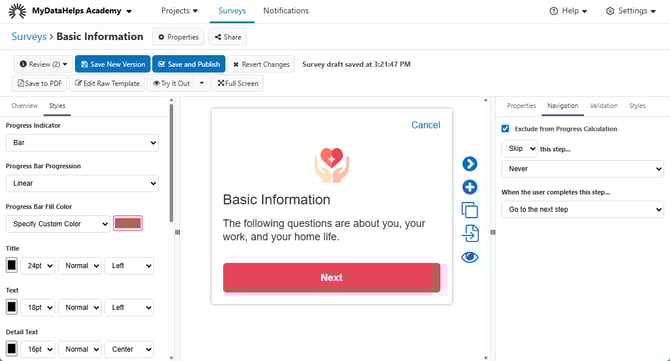
In survey creation, it’s often helpful to skip questions, show questions, or go to different questions based on the participant’s previous answers. For instance, if your survey has questions about smoking, you may wish to skip any follow up questions if the participant says they have never smoked.
By default, each step in a survey is always shown and leads to the next step. There are three types of navigation rules to alter how a participant experiences a survey, which use the same set of logical operators:
-
Skip the current step
-
Show the current step
-
Go to a specific step
In addition to the navigation rules, you can also elect to exclude steps from progress calculation, which applies if you show a progress indicator at the top of your survey steps.
Creating a Current Step Rule
If you want to show or hide a step for a subset of participants, for example asking additional questions about a diagnosis they indicated previously, you can do so with a current step navigation rule. These can be added to any step, but each step can only have either a show or hide rule. To configure a current step rule:
- Select the step in the survey editor.
- Go to the Navigation tab in the right sidebar.
- Select whether the rule will "Skip" or "Show" the current step.
- Select "If a condition is met."
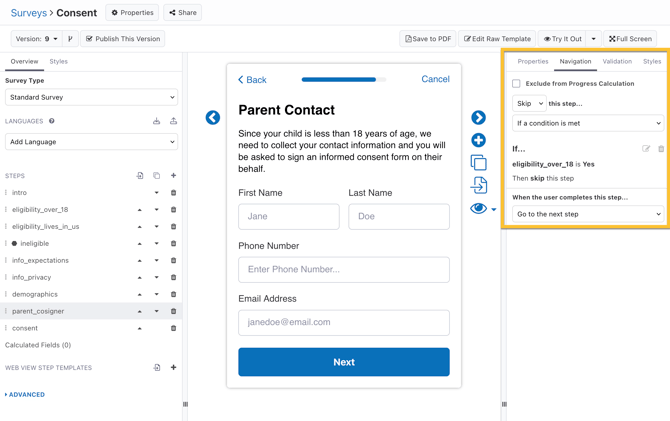
- Configure your rule by selecting conditions, including other answers in the current survey, participant fields, an expression, and more.
- Depending on the data type of the chosen condition , you will be able to select specific values or ranges like "is greater than...".

- Depending on the data type of the chosen condition , you will be able to select specific values or ranges like "is greater than...".
-
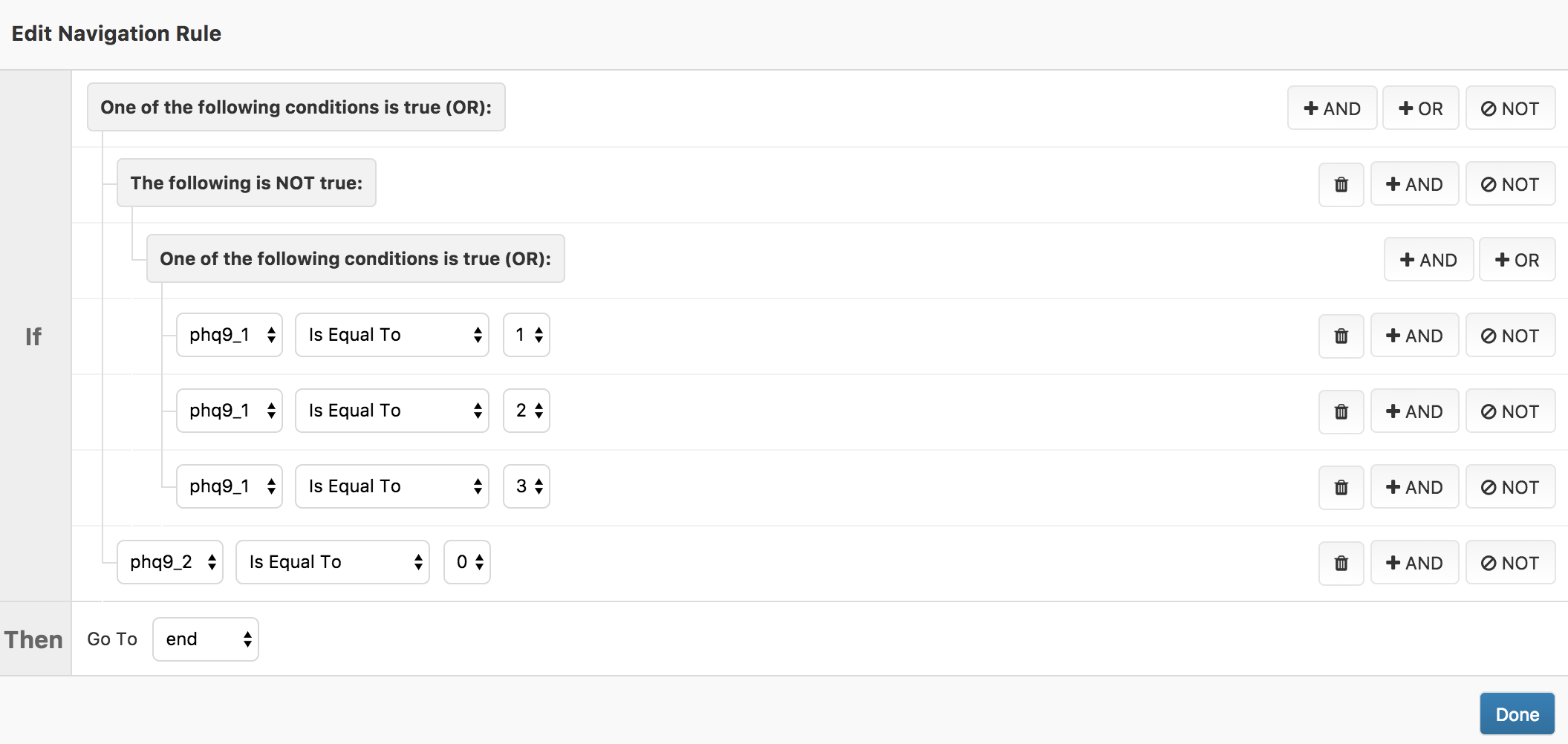
You can enter any number of conditions, and even combine and negate conditions using AND, OR, and NOT to create complex logic. See Compound Conditions below for more information.

Creating a Next Step Rule
If your survey entails skipping multiple steps, or has branching paths such as marking participants as ineligible to join a study, you can configure a next step rule to send participants to a specific place in the survey.
- `Go to the next step` - the default for all steps
- `Go to a specific step` - choose which step all participants will go to after this one
- `Go to steps depending on previous answers` - add one or more rules which determine where a participant is sent next in the survey
To create a branching survey in the survey editor using next step rules:
- Select the step in the survey editor.
- Go to the Navigation tab in the right sidebar.
- Under "When the user completes this step...", select the rule type you want to create.
- If you select `Go to a specific step`, choose which step to send all participants after this one, then the set up is complete.
- If you selected `Go to steps depending on previous answers`, select "Add a Navigation Rule" then continue on to the next steps.
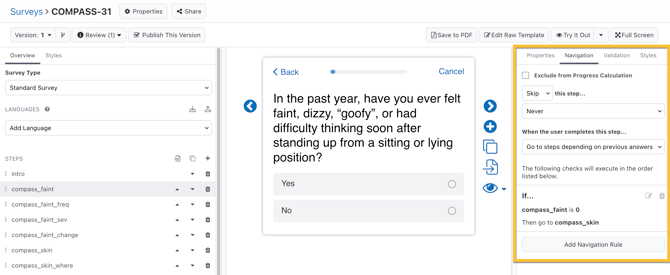
- Configure your navigation rule.
- Choose the conditions of this rule in the "If" section, which can be based on previous answers, demographic or custom fields, an expression, or the number of participants in a segment.
- Choose where this rule will send a participant. In addition to a survey step, you may also force participants to finish the survey after this step.

- Select "Done" to create the rule.
- If there are multiple branches, configure additional rules to send participants to different steps or finish the survey.
- Re-arrange the order of rules using the "arrow" buttons. Rules will evaluate in order from top to bottom.
Participants who do not meet the conditions of any next step rules will always go to the next step of the survey. No additional rule is needed in this case.
Finishing A Survey
The following table contains “finish steps” that will close a survey. These options are available when using branching logic or if “When the user completes this step…” is set to “Go to a specific step" or "Go to steps depending on previous answers". They will prompt a participant with “Done” instead of “Next”.
| TARGET STEP | SUMMARY |
| Finish Survey -> Cancel | A target step that closes the survey after prompting the participant to select whether they wish to save or discard all previous responses. |
| Finish Survey -> Cancel and Save | A target step that saves the participant’s responses from previous steps and closes the survey. If the participant returns to the survey at a later time, their saved answers will be pre-populated. |
| Finish Survey -> Cancel and Discard | A target step that discards the participant’s responses from previous steps and closes the survey. |
| Finish Survey -> Complete and Submit Results | A target step that closes the survey and submits the results. |
Rule Conditions
Navigation rules can evaluate a wide range of conditions. Conditions evaluate based on varying criteria depending on the type of data it references, as well as whether the field or survey answer is empty.
The following table outlines each type of condition and provides an example of each.
| Condition | Description | Example |
| Institution | Evaluates whether the participant is assigned to a particular institution code. | "`Is Equal To` `CSMC`" |
| Expression | Evaluates whether an expression written in Common Expression Language is true. Expressions can compare multiple survey answers, or even reference calculated fields. |
`bmi > 20` `medication_date < surgery_date` |
| Survey Answer |
Evaluates the answer to a question in the current survey against the configured criteria, depending on the answer format. Web View Step answers can be evaluated using Regular Expressions. |
"`smoking_form > smoker` `Is Equal To` `Yes`" "`pain_level' 'Is Less Than or Equal To` `8`" |
| Custom Field | Compares the value of the custom field to an expected value, or whether it is empty. | "`CustomField.StudyArm` `Is Equal To` `intervention`" |
| Demographic Field | Compares the value of the demographic field to an expected value, or whether it is empty. | "`DemographicField.Gender` `Is Equal To` `Female`" |
| Participants in Segment | Evaluates against the number of participants are in a segment. | "`Participants in Segment` `Study-Provided Device` `Is Greater Than or Equal To` `250`" |
Compound Conditions
You are not restricted to a single conditional when editing a navigation rule. By clicking the “AND”, “OR” and “NOT” buttons you can combine or negate the various conditions.
Evaluating Regular Expressions
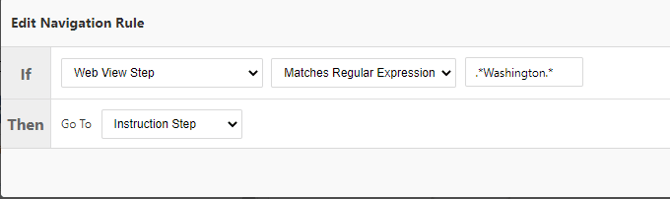
Since a web view step can return complex data, you can use regular expressions (regex) to control branching based on whether the answer matches a certain string.
For example, if you have a web view step that returns some location data, you could create a navigation rule that branched to an instruction step if the web view data matched a particular location.
The system will compare the regex against the entire web view step answer. You must account for the answer data before and after your desired string in your regex. For example, .*Washington.* will match "any text, followed by Washington, followed by any other text."
Exclude From Progress Calculations
Within the Survey Styles tab, you can elect to display a progress indicator at the top of the survey. This informs the participant how far they are in the survey. In some instances (e.g., a calculation step that runs behind the scenes), you may not want to count a survey step as part of the participant's progress through a survey. To exclude a step, select "Exclude from Progress Calculation". This will also remove the progress indicator from the top of that step.