
An instruction step is the most basic step type. It allows you to present content to the user without requiring input, such as answering a question.
| PROPERTY | FUNCTION | EXAMPLES |
| Title | The large text displayed at the top. | Mood Survey, Next, Thank You |
| Text | The smaller descriptive text below the title. | Next, we will ask you a handful of questions about your mood. |
| Detail Text | Additional description below “Text.” | Please describe your mood in as much detail as you can. |
| Icon Image URL / Upload |
Optional small icon that will appear above the instructions. Choose from None, Organization Logo, or Custom / Uploaded Icon. If uploading a file from your computer, this will automatically be hosted on CareEvolution's servers. |
https://orgimages.careevolutionapps.com/youricon.png |
| Image URL / Upload |
Optional image that will appear below the instructions. If uploading a file from your computer, this will automatically be hosted on CareEvolution's servers. |
https://orgimages.careevolutionapps.com/yourimage.png |
| Next Button Text |
Overrides the default text used for the "Next" button. |
Get Started, Proceed, Learn More, Join Now, etc. |
| Footnote |
Optional note that appears at the bottom of the step. Supports Markdown formatting. |
Conditions may apply. |
| Content Items |
Optional way to display different content items. See the Content Items section for further details. |
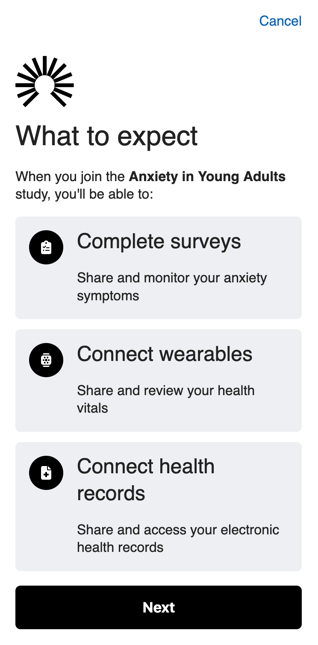
(See the above screenshot. Each of these are a content item: Complete surveys, Connect wearables, Connect health records.) |
Icons and Images
An Icon Image go above the Title. A regular Image goes just above the Next Button. For both fields, you have the option to Use Organization Logo, which will use your workspace's logo, or provide a Custom / Uploaded Icon. When an image is uploaded to the survey step, a CareEvolution URL is automatically created for hosting the image. The image can be re-used in other surveys or App Designer by pasting the generated URL.
You'll want to consider the device platform your participants will be using when you add images. The average mobile screen has a width of approximately 390px and should use a minimum font size of 16px (12pt), assuming a typeface similar to Arial or Helvetica. If designing for retina screens, doubling the resolution is recommended, so 780px width and 32px (24pt) font. We always recommend testing how your images display on actual devices.
For security reasons, images must be hosted on CareEvolution's servers; external links are not permitted.
The Icon Image size and alignment can be updated from the Styles tabs.
Content Items
In addition the the standard fields for Instruction Steps outlined above, you can also add content items. Content items are similar to Form Step items but contain your content, rather than capturing an answer from the participant.
To add a content item, click Add Content Item button at the bottom of the Properties pane:
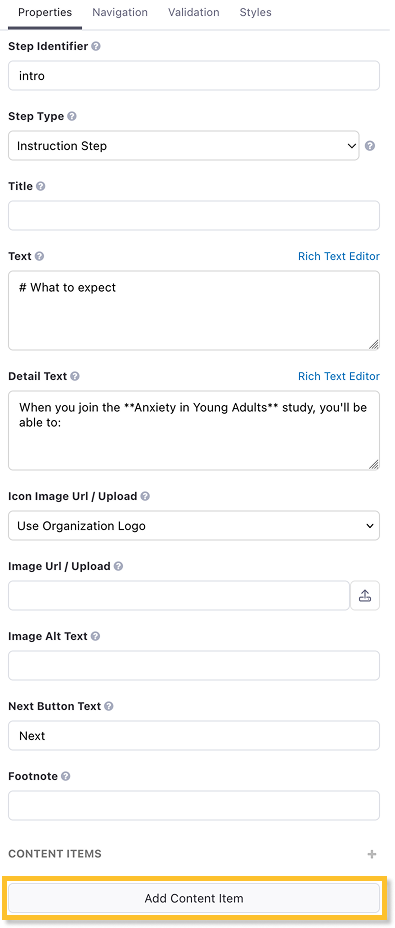
Each content item has a few fields:
| PROPERTY | FUNCTION |
| Identifier | The identifier of the content item. |
| Background Style | Choose from None or Card. Card adds a background to the content item, creating the appearance of a card. |
| Icon | Optional. Select a Solid (icons will be filled in) or Regular (not filled in) style and then pick an icon from the drop-down list (you can type to filter). Icon style options (size, color, etc.) are found in the Styles tabs. |
| Hide/Show this item... | Whether the form item is hidden or shown based on previous answers or participant data. See form step type for more details. |
| Text | The text of this content item. Can be formatted with markdown. |
For example, the screenshot at the top of this article has the following configuration for the "Complete surveys" content item:
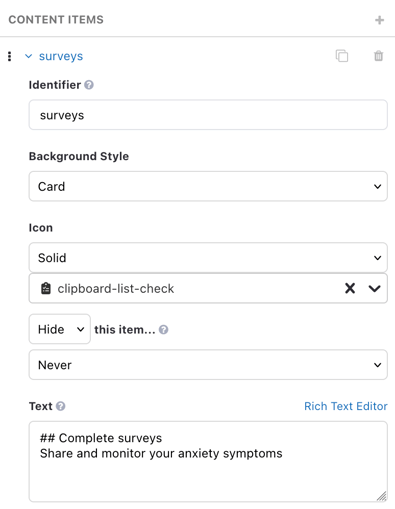
Similar to form items, you can add as many content items as needed and rearrange them by clicking and dragging the 3-vertical dots icon in the top left of the content item.