
Survey tasks help you track surveys delivered to a participant. Each task in the list shows essential information about it, including the schedule which assigned it and the associated Event, if applicable, created and completion dates, status, as well as options to close the task.
Viewing Survey Tasks
To see a list of survey tasks:
- Go to the "Participants" tab in your project.
- Select a participant.
- Select the "Task List" tab.
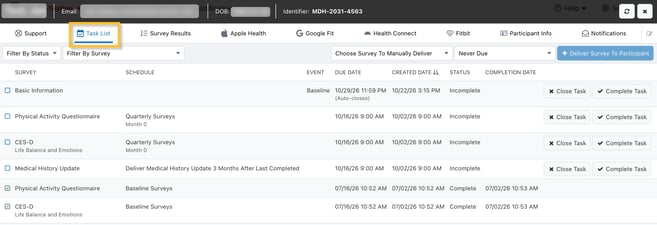
The schedule associated with a particular task is listed next to the survey name. Access all schedule data via the Survey Results Export, including ID, interval, interval type, name, and category.
Filtering Survey Tasks
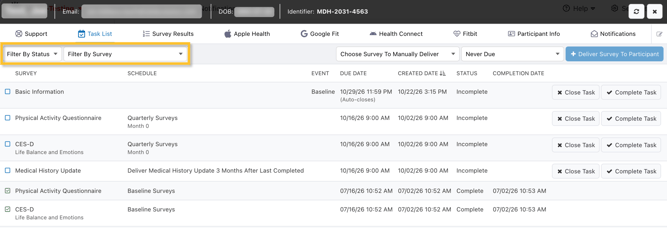
Survey Tasks can be filtered in the Task List tab by Status and by Survey Name using the "Filter By" drop-downs.
Closing Survey Tasks
Survey tasks remain open until the participant completes them, or they are closed by a schedule or coordinator. Most surveys should be set to automatically close on their due date or closed via another schedule, but you can manually close incomplete surveys if needed.
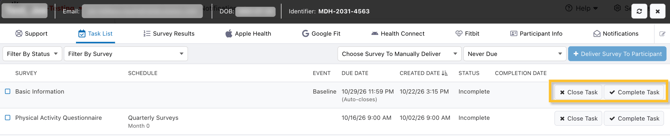
In the right column of any incomplete survey task, you will see two options:
- "Complete Task" will close the task and mark it as completed. This can trigger schedules which use completed tasks (but not survey results or answers) as criteria, and will display to participants anywhere they are shown completed tasks.
- "Close Task" will close the task without marking it as completed. It will disappear from their task list.
If a participant has partially answered a survey and saved their progress, these answers will not be collected and stored as survey results if a survey is closed using any method. Only the participant submitting the survey will store their results.