
MyDataHelps provides various methods to approach participant recruitment and enrollment for your project. This article covers the features available to you on the Enrollment Settings tab for your projects. We also recommend reviewing the typical recruitment and enrollment workflows.
Recruitment Methods
Recruitment comes before account creation. When recruiting participants, you can mix and match any of the following methods:
| METHOD | Use Cases | Description | To ENABLE |
|---|---|---|---|
|
Public URL / QR Code |
Registries In-person recruitment |
Distribute a link (or QR code) to a recruitment survey or account registration that will create a participant record in MyDataHelps Designer once completed. This link can be distributed via a study website, flier, or other media. |
If using a Recruitment Survey, refer to the Enrollment Settings: Recruitment Survey article. If directing participants to account registration first, refer to the Enrollment Settings: Open Enrollment article. |
|
Invitation Email / SMS |
Targeted recruitment with a list of potential participants |
Send an invitation with a participant-specific recruitment or enrollment survey URL to join your project. | Refer to the Enrollment Settings: Invitation article. |
| Coordinator Intake |
In-person recruitment Coordinator-gated eligibility review |
Enable coordinators to complete a survey with basic participant information to invite them to the project. Can be the enrollment survey. | Refer to the Enrollment Settings: Coordinator Intake article. |
| Search | Large public health projects | Allow participants to search for and join your project within the MyDataHelps app. Requires CareEvolution approval. | Refer to the Enrollment Settings: Search article. |
Enrollment
To complete enrollment in a project, a participant must both:
-
Complete the Enrollment Survey, which typically includes consent.
-
Create a MyDataHelps account.
These can be done in either order. A participant’s enrollment date will be whichever of these two occurs later.
We recommend completing the Enrollment Survey prior to account creation and collecting contact details within the survey. This approach lets participants quickly join a study and allows your team to follow-up with those who have not completed enrollment. It also avoids requiring ineligible participants to create an account.
There are a few ways the Enrollment Survey can be completed:
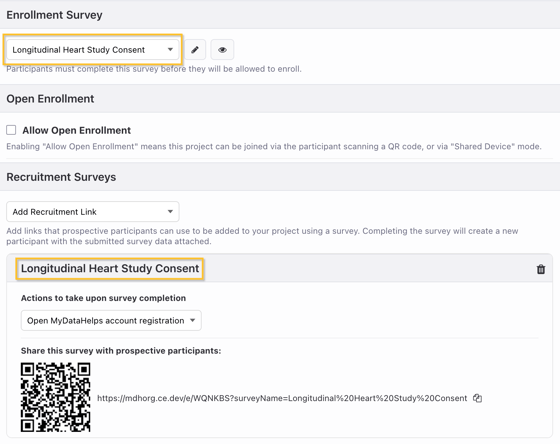
- Recruitment Survey as the Enrollment Survey: The most typical option is to set a recruitment survey as the same survey as the enrollment survey. If they complete the recruitment survey and then create their account, they will be enrolled since the enrollment survey has been completed.
- Coordinator Intake Survey as the Enrollment Survey: Similar to a recruitment survey being the enrollment survey, you can also add the enrollment survey as a coordinator intake survey. After a coordinator completes the intake survey and the participant creates their account, they will be enrolled.
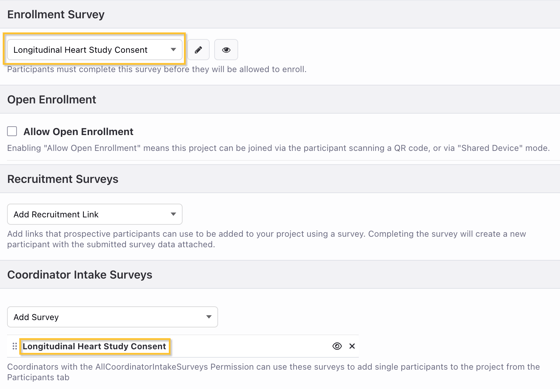
Typically the enrollment survey includes consent, which would be completed by the participant rather than the coordinator. This method is only recommended if consent is being captured in-person.
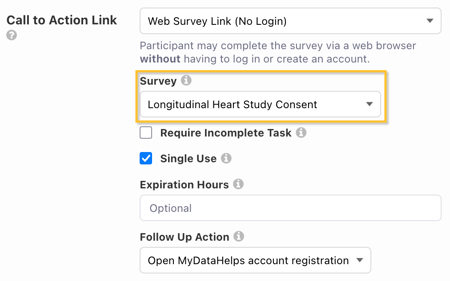
- Web Survey Link as the Enrollment Survey: If you will be sending a notification to a participant, you can include a web survey link in your notification as your enrollment survey. You also have the option to direct a participant to account registration after the enrollment survey, completing enrollment.
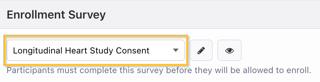
- Enrollment Survey after Account Creation: You do not need to deliver the enrollment survey prior to account creation. If a participant joins the project through an invite or an open enrollment URL and creates their account, they will then be prompted to complete their enrollment survey. After submitting the survey, they will be enrolled.
Enrollment Reminder Notifications
It is recommended that you capture participant contact details in a recruitment survey prior to them completing enrollment so you can use the contact information to send reminders and notifications. It is possible participants drop off before finishing enrollment and a reminder email or SMS can nudge them towards completing enrollment, such as creating their account. Alternatively, you may now be ready to invite participants who were added to a waitlist or screening list and can use their contact details to reach out to them, inviting them to enroll.
Advanced Settings
MyDataHelps also offers a few advanced options for enrollment configuration, such as defining the Participant Identifier Pattern and assigning a project as the master participant list for a set of related projects.
Participant Identifier Pattern
All participant records in MyDataHelps include a Participant Identifier, which can be used to reference this participant throughout the system and in data exports. These will be automatically generated and assigned to new participants, unless you specify them in a Coordinator Intake Survey or by uploading them as part of a bulk participant import.
By default identifiers will take the form of "MDH-####-####", but you can enter your own identifier pattern under the "Advanced" heading on the Enrollment Settings page. Your pattern may contain any combination of:
- Uppercase or lowercase letters
- Digits (numbers)
- Hash (`#`) symbol to generate a random digits (include at least four)
- Hyphens ('-')
- Underscores ('_')
- For more advanced needs, plus ('+'), only as the final character to generate a checksum digit if at least four '#' are used
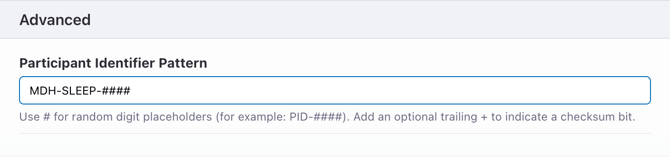 If you do not include four '#' symbols, your pattern will be treated as a prefix and will have "####-####" added to the end when identifiers are generated.
Participant Identifiers can be changed after participants are created, but this can lead to errors cross-referencing participant data when analyzing exports.
Master Participant List
Checking the "Act as Master Participant List" field indicates that the project holds the source list of participants for all associated projects within that workspace. This can be especially useful for registry studies that create additional MyDataHelps projects to host sub-studies.
When enabled, participants who are copied from the master list project into another project in the same workspace using the Add to Project segment action will also be enrolled in the source project upon completing enrollment in the other study.